
Artwork and production
Custom Wrap Graphics Tools for Vehicle Livery
Custom vehicle graphics need measured artwork, suitable film and a production method matched to the design. Vector software and a vinyl plotter suit cut lettering and stripes. Photos and gradients need a compatible printing workflow. Paint pens require separate compatibility checks.
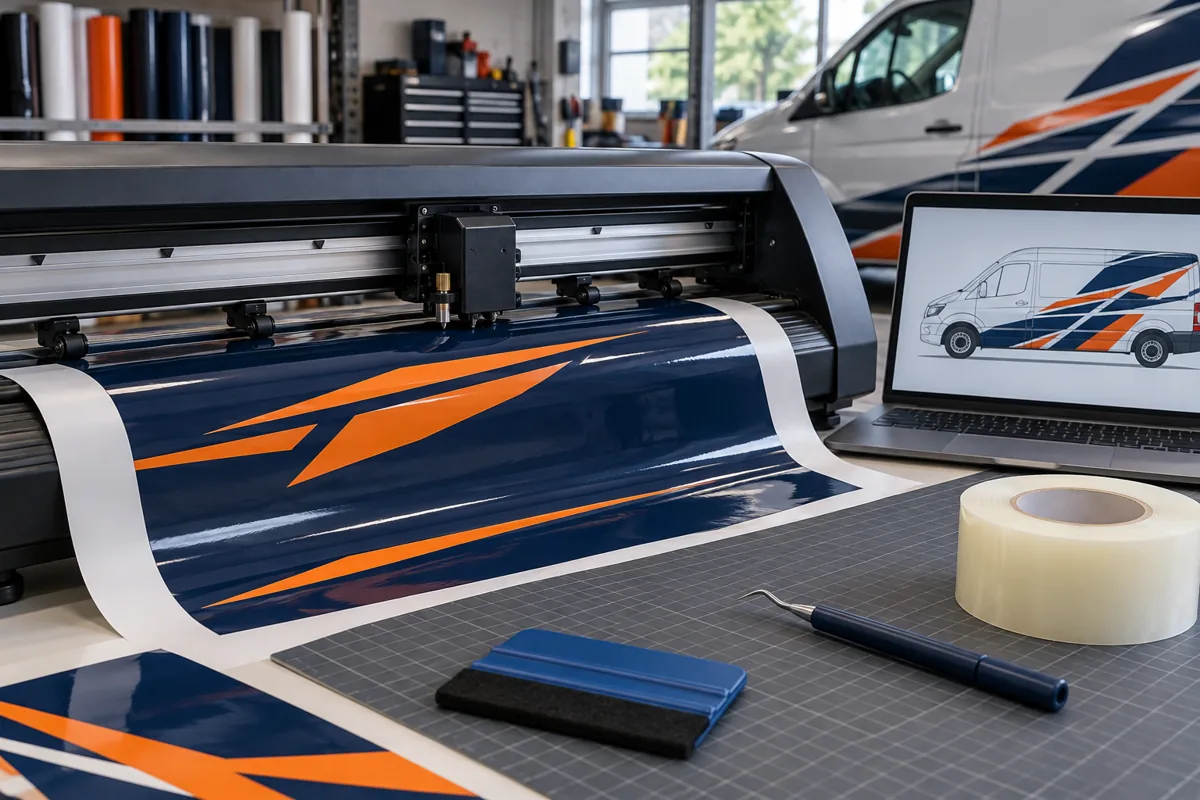
Choose between cut vinyl and printed graphics
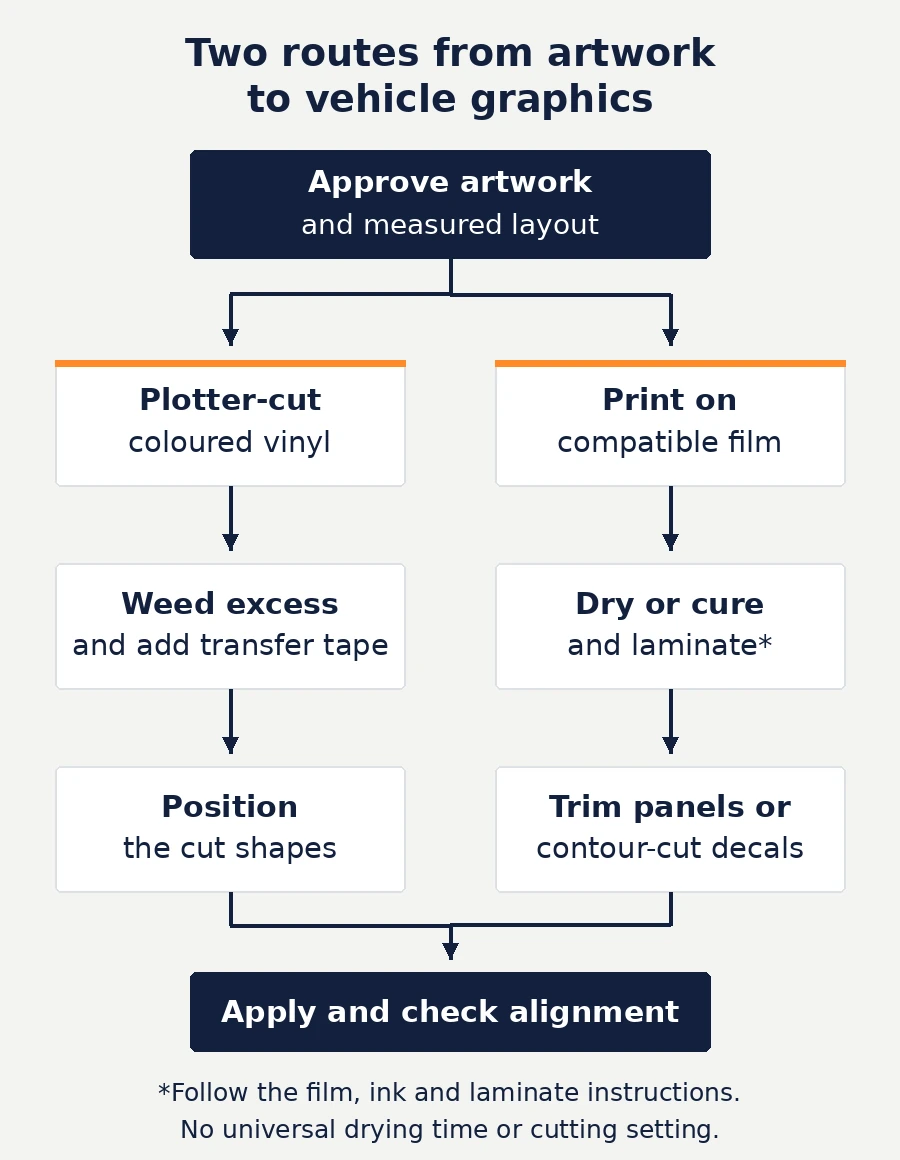
A vinyl cutting plotter moves a blade along paths in a digital file. It does not create a photograph or print a gradient. A wide-format printer puts ink onto suitable media. Some machines combine printing and cutting, while other workshops use separate devices. Choose the output first, then the equipment.
| Design | Production route | Important check |
|---|---|---|
| Solid lettering, numbers and stripes | Plotter-cut coloured adhesive vinyl | Clean vector paths and shapes that can be weeded |
| Photos, gradients and multicolour backgrounds | Printed graphics with the specified protection layer | Image quality, colour proof and compatible film system |
| Printed decals with shaped edges | Print, process and contour-cut | Cut paths, registration and bleed around the shape |
A single livery can combine these routes. A printed side panel might carry a separately cut fleet number. That arrangement can make the number easier to replace, provided the films and application method are compatible. Layering every colour separately is less useful for a complex photograph or a design with many tiny pieces.
Measure the actual vehicle before laying out the artwork
Start with the make, model, year and body configuration. For a van, wheelbase, roof height and door arrangement can change the usable area. Spoilers, aftermarket trim, vents and repaired panels need attention too. A template is a starting reference, rather than proof that a graphic will fit that particular vehicle.
A tape measure, straight-on photographs and a marked layout help connect the file to the bodywork. Record stable reference points on the panels. Check the position of handles, hinges, badges, fuel flaps and body lines. Photograph each required view without relying on a wide-angle picture to establish dimensions.
Decide what must remain readable before choosing decorative details. On a branded vehicle, a name or contact number should not split awkwardly across a door gap. On a motorsport-style livery, a stripe that looks continuous in a side view may meet a differently shaped bumper. Check the front, rear and opposite side as separate views.
A mockup communicates composition. It cannot certify adhesive performance, predict exact stretching or replace a fitting assessment. Keep any areas that still need measuring visible in the job notes. The designer and installer should agree them before producing full-size material.
Use vector artwork for cuts and raster images for print detail
Vector artwork describes shapes through paths and points. It suits logos, lettering and cut outlines because those shapes can scale without becoming a grid of larger pixels. A raster image contains pixels and suits photographs and many textures. A printed wrap can contain both in the same layout.
Adobe Illustrator and CorelDRAW are examples of vector design software. Image-editing software can prepare photographs. The useful choice depends on the printer's accepted formats, the cutter connection and the designer's skills. Buying a particular application does not remove the need to check the exported result.
Build usable paths rather than tracing every visible edge
A photograph of a logo is not automatically a cut file. Automated tracing can produce rough curves, extra points and small fragments. Inspect the paths at the intended size. Close outlines that should enclose a shape, remove duplicate cuts and simplify detail that would be difficult to weed or apply.
Keep an editable master with text, artwork and production instructions on identifiable layers. Send a separate approved production copy when outlines or flattened effects are required. Adobe's Illustrator packaging guidance explains how linked assets and a report can accompany the document. Check font licences before sharing font files.
Check scale, image resolution and panel allowances
The production team needs to know the final dimensions and the scale of the document. A reduced-scale file without that information can be printed at the wrong size. Put the ratio in the handover notes and confirm it against a known measurement before processing the job.
A raster image at 300 pixels per inch in a file enlarged ten times becomes 30 pixels per inch at final size. Changing the resolution label alone does not create missing detail.
That is an arithmetic example, not a recommended output resolution. Ask the printer what effective resolution is appropriate for the artwork, viewing distance and output method. Judge a representative full-size crop, particularly where a logo or fine detail will be seen close up. Keep vector elements as vectors where the workflow supports them.
Bleed outside the intended edge
Extend background artwork beyond the planned trim boundary. Bleed provides working material for positioning and finishing. Its amount must come from the measured panel and fitting plan, not a universal margin copied from a business card. Use the car wrap cut-line planning guide to agree panel gaps, edge returns and joins before exporting the artwork.
Overlap between produced panels
Plan how adjacent printed pieces meet. Record the overlap, sequence and graphic continuation. Bleed and overlap are related allowances, but they do different jobs. A join should not unexpectedly remove part of an important word.
Safe space around important details
Keep critical text and logos away from trim lines and obstructions. Check the placement with doors closed and open. A logo can be inside the artwork boundary and still be partly hidden by a handle.
Before export, check linked images, fonts, clipping masks, hidden alternatives and transparency. Confirm whether the receiving team wants a production PDF, another output format or the editable source as well. An extension such as PDF or EPS does not itself guarantee correct scale, colour handling or cut paths.
Approve the colour on the intended print system
A RIP, or raster image processor, prepares artwork for the printing device and manages settings used to produce it. A media profile describes a particular output setup. Printer, ink, film and print mode all matter. A profile for another material is not interchangeable simply because both rolls are white.
Agree the required source colour space and embedded profile with the production team. Some workflows request CMYK files, while others use profiled RGB artwork. Avoid repeated conversions between them. Supply the brand colour references and identify colours whose appearance is especially important.
A screen preview is useful for composition, but it is not a physical colour proof. Print a sample using the planned media, settings and finishing layer. Look at the sample in appropriate light and approve it before the full run. A laminate can affect the perceived finish, so evaluate the finished sample.
Keep the approved sample and output settings with the artwork version. A replacement panel may differ from weathered neighbouring film, even when produced from the same file.
Match the print film, ink and protection layer
Select the film for the actual geometry and intended use. A flat door decal and a graphic extending into a deep recess present different demands. Cast printable films are often used for contoured vehicle wraps, but the named product's limits still govern. A cast label does not make every laminate or ink combination suitable.
Avery Dennison’s MPI 1105 product information gives an example of a documented printable cast-film system, including compatible ink categories and recommended overlaminates.
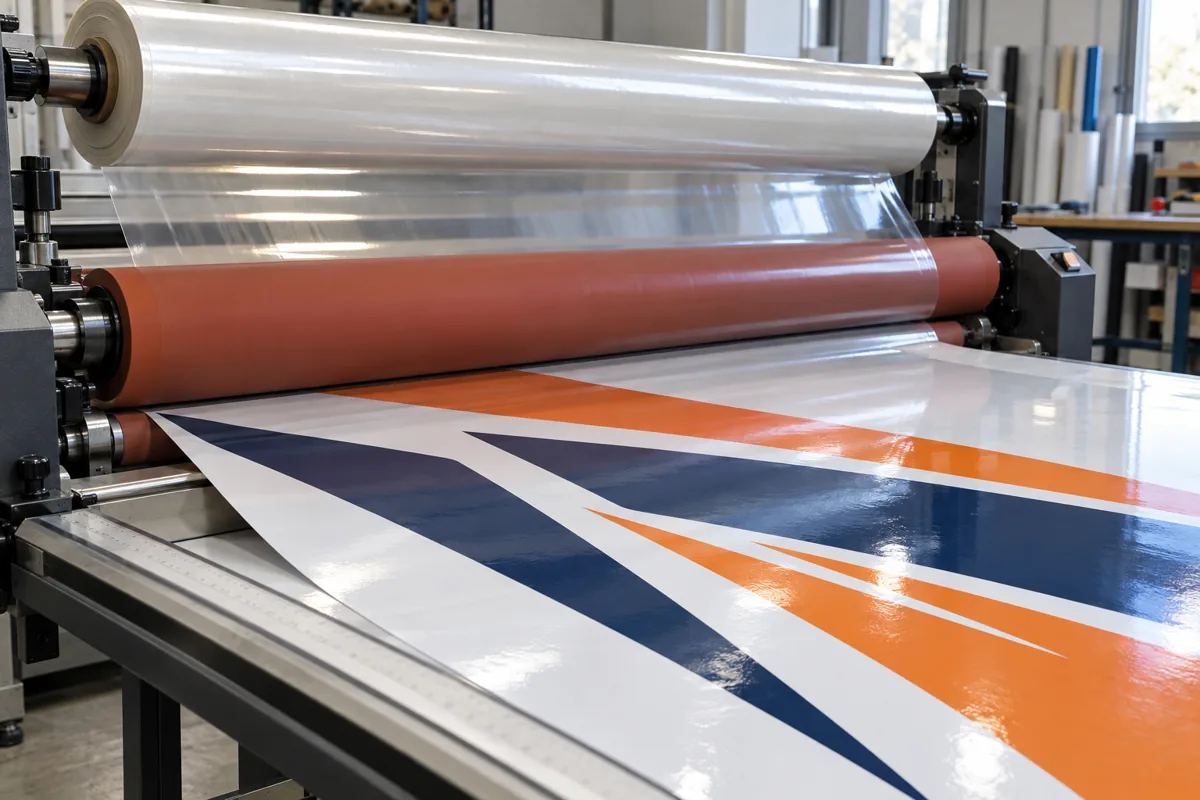
Drying or curing comes before lamination when required by the process. Avery's vehicle graphics processing bulletin warns that laminating insufficiently dried prints can cause separation or adhesion problems. Follow the current instructions for the chosen system rather than using one waiting time for every ink.
A laminator applies the agreed protection layer. It cannot make an incompatible film suitable for a recess. Confirm the film and laminate names, permitted applications and written warranty terms.
Test the plotter cut before preparing the full design
The relevant controls include blade extension, cutting force, speed and blade offset. Offset describes the relationship between the blade tip and its turning position. The suitable combination depends on the cutter, blade and material. A laminated print may need a different setup from an unlaminated coloured film.
Make a test cut on the actual material. A kiss cut should separate the intended face material while leaving the release liner usable. Peel the sample and inspect corners, small details and the backing. If it does not weed cleanly, inspect the blade and settings before adding force. Roland's cutter setup guidance explains why blade extension and cut tests matter.
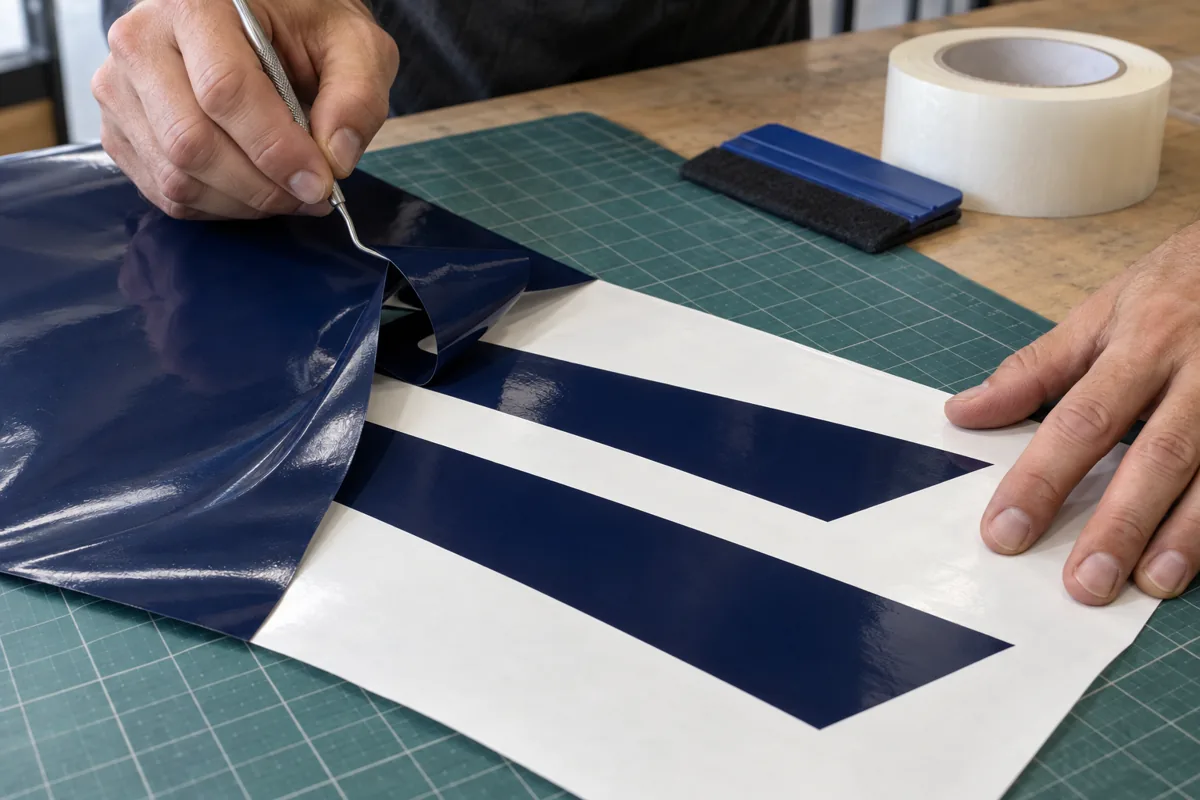
Weed the waste and preserve the arrangement
A weeding pick lifts unwanted vinyl from the liner. Larger waste sections and suitable weed lines can make handling easier. Work under clear light and check small internal areas, such as the centre of a letter. Too many tiny islands can make a design impractical even when the cutter follows the file accurately.
Application tape, also called transfer tape, holds separate cut elements in their relative positions while moving them to the vehicle. Choose a tape suitable for the film and graphic. Test pickup and release on a sample. Excessively aggressive tape can make removal difficult, while insufficient pickup leaves elements behind.
Label the pieces by vehicle side and fitting position. Keep them flat and protected from dirt, and retain the matching proof.
Use registration marks for printed contour cuts
A contour cut follows an outline around a printed graphic. The printed colour and cutting path must agree, but they are separate instructions. Putting a coloured line into the artwork does not necessarily tell the machine to cut it.
Roland's VersaWorks cut-data instructions use the case-sensitive spot-colour name CutContour for cutting paths. Other systems can require different conventions. Confirm the active RIP and cutter workflow, then check the imported preview recognises the intended paths.
Registration marks help the cutter locate artwork that has been printed and reloaded. Keep them in the required positions and leave the machine's specified clear area. After any required drying and lamination, reload the sheet correctly and test alignment before committing to a long run. Guessing an offset by eye is a poor substitute for the device's calibration process.
Extend printed colour beyond the contour where the specification requires bleed. That can help avoid an unwanted white edge from small print-to-cut variation. Keep a deliberate white border if the design calls for one. Through-cutting and perforated cutting are separate operations from a kiss cut, and require their own machine instructions.
Align the graphic without stretching the design to fit
Use reference measurements, the approved proof and temporary positioning methods suited to the surface. Masking tape can establish a hinge or reference line where appropriate. Magnets only work on suitable ferrous surfaces and need clean contact faces. Do not assume they will hold on an aluminium or plastic panel.
A squeegee applies controlled pressure during fitting. A heat gun and thermometer support the specific film's application and finishing process. They cannot correct an incorrectly scaled logo. Establish alignment before bonding and avoid trying to stretch lettering across a measurement error.
Check each panel in relation to the next. A geometric stripe can appear misaligned if one piece is pulled around a curve differently from the adjacent piece. Plan seams, overlaps and any inlays with the installer before printing. For the separate fitting tools, our guide to squeegees and air-release tools explains their roles and limitations.
Inspect the substrate before installation. Loose paint, contamination or an unresolved repair changes the fitting decision. Keep vehicle openings, lights, identification plates and equipment unobstructed.
Treat paint pens as a separate material decision
A paint marker can produce a hand-drawn accent, but a statement that it works on plastic is not approval for every automotive wrap or laminate. The ink, surface finish, flexibility, cleaning method and exposure all need consideration. Do not draw directly on an installed customer wrap to discover whether a pen adheres.
POSCA's plastic-surface guidance describes drying and varnishing for craft applications. It does not certify an automotive film system. Adding varnish to a wrap is another compatibility question, so do not transfer that craft method to a vehicle without written guidance for the relevant materials.
If a hand-drawn finish is proposed, test an offcut of the actual film and laminate. Let the mark dry as instructed, then evaluate appearance, flexing and the intended care method. A short sample test does not establish years of outdoor durability or preserve a film warranty automatically. Agree the treatment and its limitations before applying it.
For repeated fleet elements, redraw the accent as artwork and produce a sample of a printed or cut version. That gives the team a reproducible file for later repairs. A paint pen is also not a suitable shortcut for disguising a tear, failed seam or lifting edge.
Approve the proof and keep the production record
Before output, compare the final proof with the actual vehicle information. Read every name, telephone number and web address. Check both sides independently. Confirm coverage, join positions, film finish, quantities and the approved revision. An attractive mockup with an incorrect number remains an incorrect job.
- Artwork packageRetain the editable master, approved output file, linked assets and permission details.
- Production notesRecord final size, document scale, panel labels, overlap plan, cut paths and the approved colour sample.
- Material detailsKeep the film and laminate identification, relevant batch information and written care and warranty documents.
- Handover photographsRecord the installed design and important joins so later replacement work has a useful reference.
Agree which artwork and production files you receive and how later vehicle variants will be prepared. Our car graphics options explain the available coverage choices.
Planning a custom graphic
Bring the artwork and vehicle details together
Send your vehicle model, clear panel photos and the design files you have. Our Al Quoz workshop can discuss coverage, artwork preparation and a suitable production approach.
Common questions about custom graphics tools
Can a vinyl plotter print a vehicle wrap?
A cutting plotter follows paths with a blade. It does not print photographs or gradients. A printer/cutter combines both functions, while a separate cutter can process compatible printed sheets through a registration workflow.
Can I supply a PNG or JPEG logo?
It can help as a reference and may be usable in print if its effective resolution is sufficient. Cut lettering and shapes need suitable vector paths. A small image may need redrawing rather than simply being saved with a different extension.
Does every wrap file need CMYK colour?
No universal source colour mode suits every print workflow. Follow the production team's requirements for colour space and embedded profiles. Approve a finished sample when colour accuracy matters.
How much bleed should a vehicle graphic have?
The allowance depends on the measured panel, coverage, trimming and installation plan. Get the specification before preparing the output file. A single margin cannot cover every door decal, printed panel and shaped bumper.
Can a paint pen be used on laminated vinyl?
Only consider it after checking the exact ink and film system. Test an offcut and establish the intended care and warranty limitations. General plastic-surface instructions are not proof of automotive compatibility.
Why do cut graphics need transfer tape?
Transfer tape keeps separate letters and shapes arranged while they move from the liner to the vehicle. The tape must pick up the graphic and release appropriately after fitting. Its suitability should be checked on the actual material.